INSTALLATION INSTRUCTIONS
System requirements:
- 64-bit Windows or Linux system (tested on Windows 7, Windows Server 2008, Ubuntu Linux 12.04 and 13.04)
- at least 4 to 8 GB RAM
- a few GB of free disk space for temporary index files
Installation (Windows):
1. Download and install OpenMS-1.11_Win_64bit_setup.exe.
2. Download and unpack the lastest release of SimTandem for Windows (see section download).
3. (SimTandem >= v. 1.1.96 only) Put the file "SimTandem.ttd" into the subdirectory "OpenMS-1.11\share\OpenMS\TOOLS\INTERNAL".
Put the files "SimTandem.exe" and "tbb.dll" into the "OpenMS-1.11\bin" where the binaries of other TOPP tools are located.
4. (SimTandem <= v. 1.1.74 only) Put the file "SimTandem.ttd" into the subdirectory "OpenMS-1.11\share\OpenMS\TOOLS\EXTERNAL".
5. Restart your computer (if you proceeded the step 1).
Installation (example for Ubuntu Linux):
1. Download and install OpenMS-1.11.0.tar.gz.
2. Download and unpack (e.g., "tar -xvzf simtandem_x.x.xx.tgz") the lastest release of SimTandem for Linux (see section download).
3. Install Threading Building Blocks (TBB), e.g., by "sudo apt-get install libtbb2".
4. Install SimTandem using the provided .deb file, e.g., "sudo dpkg -i simtandem_x.x.xx-1_amd64.deb".
5. (SimTandem >= v. 1.1.96 only) Put the file "SimTandem.ttd" into the subdirectory "OpenMS-1.11.0/share/OpenMS/TOOLS/INTERNAL".
You can locate SimTandem's binary file by "whereis SimTandem" (it will be likely located in "/usr/bin/").
Now make a symbolic link in the directory where the binaries of other TOPP tools are located (e.g., "ln -s /usr/bin/SimTandem OpenMS-1.11.0/bin/SimTandem")
6. (SimTandem <= v. 1.1.74 only) Put the file "SimTandem.ttd" into the subdirectory "OpenMS-1.11.0/share/OpenMS/TOOLS/EXTERNAL".
Notes:
- make sure that the path to "OpenMS-1.11.0/lib" is in your LD_LIBRARY_PATH (e.g., put "export LD_LIBRARY_PATH=/home/myusername/OpenMS-1.11.0/lib:$LD_LIBRARY_PATH" into your .bashrc file)
- make sure that .mgf and .fasta files proceeded by SimTandem have Linux line endings (you can use "dos2unix filename.fasta" or "dos2unix filename.mgf" to convert the files having Windows line endings)
- if you need .rpm file instead of .deb file, you can use alien, e.g., "sudo alien -r simtandem_x.x.xx-1_amd64.deb" to make the .rpm file
Usage:
1. Run TOPPAS.
2. SimTandem is available in the left menu "TOPP tools" in "Identification/SimTandem" (SimTandem >= v. 1.1.96) or "EXTERNAL/GenericWrapper/SimTandem" (SimTandem <= v. 1.1.74).
3. Drag & Drop SimTandem into the workspace.
4. Click with the right mouse button on the box and select "edit parameters".
5. Set the correct location of "simtandem_openms.exe" in the option "executable" (SimTandem <= v. 1.1.74 only).
6. Optionally, you can change the path in "indexDir" where indexed files are stored (make sure that the path is writable).
7. Connect input files *.mgf and *.fasta with SimTandem and connect also the output *.IdXML file with an output box or another tool.
8. If you have another input file than *.mgf, the tool "File Handling/FileConverter" can be used as SimTandem's predecessor.
9. Syntax of variable modifications: common modifications, e.g., "M(Oxidation)+15.994915;" or "N(Deamidated)+0.984016;", N-term or C-term modifications "Q(Gln->pyro-Glu)N-term-17.026549;", non-specific N-term or C-term "X(Acetyl)N-term+42.010565;".
10. If you want to use ConsensusID, replace the file "OpenMS-1.11\bin\IDPosteriorErrorProbability.exe" with
a modified version to enable the support of SimTandem by the IDPosteriorErrorProbability tool.
Optionally, you can compile OpenMS library from the source code.
In this case, just replace the file "OpenMS-1.11\source\APPLICATIONS\TOPP\IDPosteriorErrorProbability.C" with the modified source file
before the compilation.
Examples of Workflows:
All workflows (*.toppas) are available here.
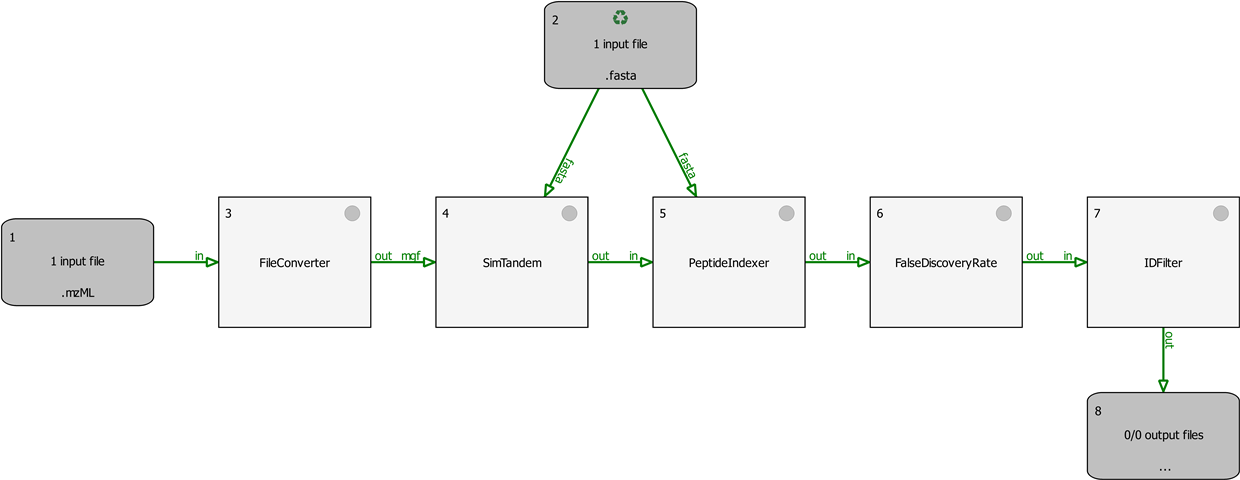
A simple identification workflow.
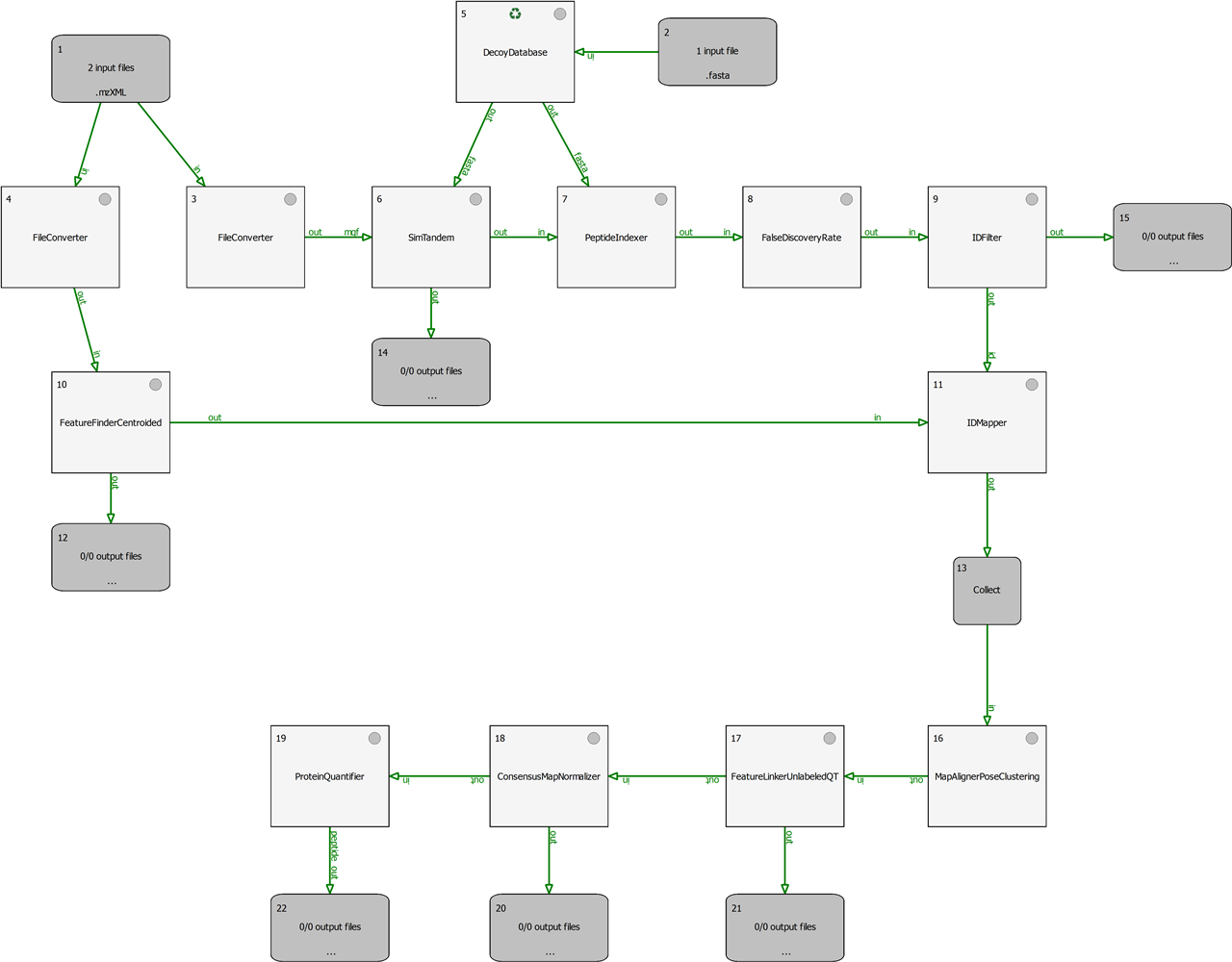
A simple label-free quantification workflow.
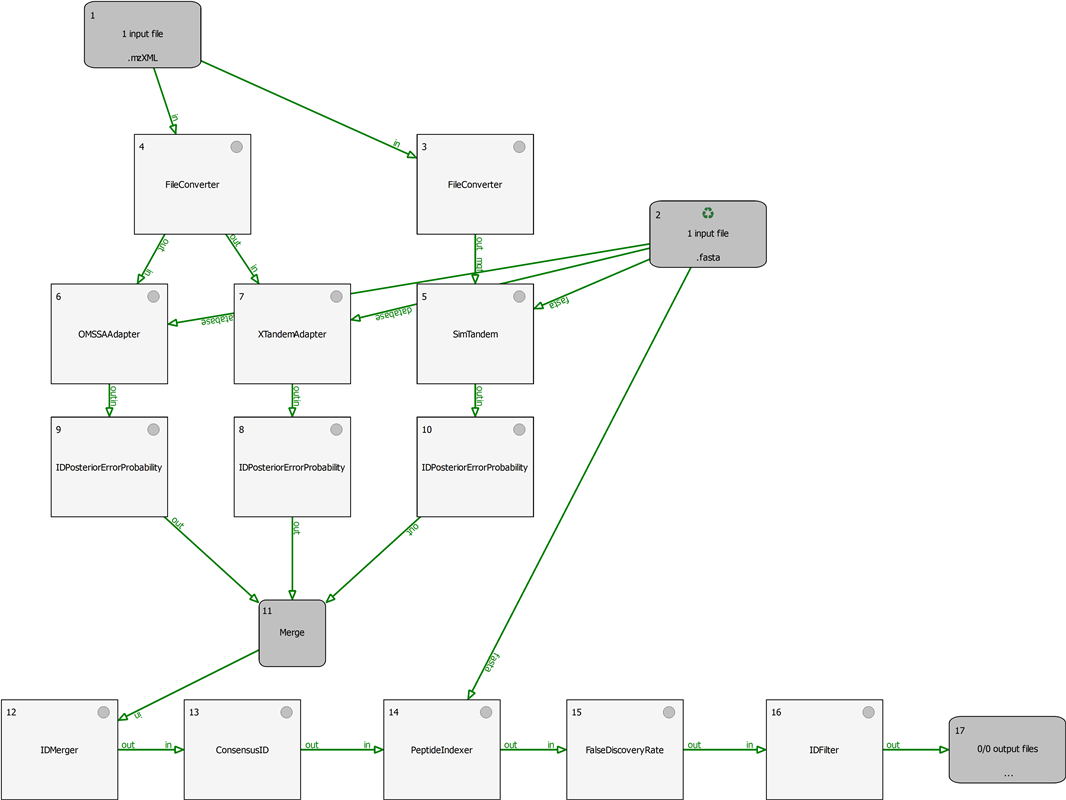
An identification workflow with ConsensusID.
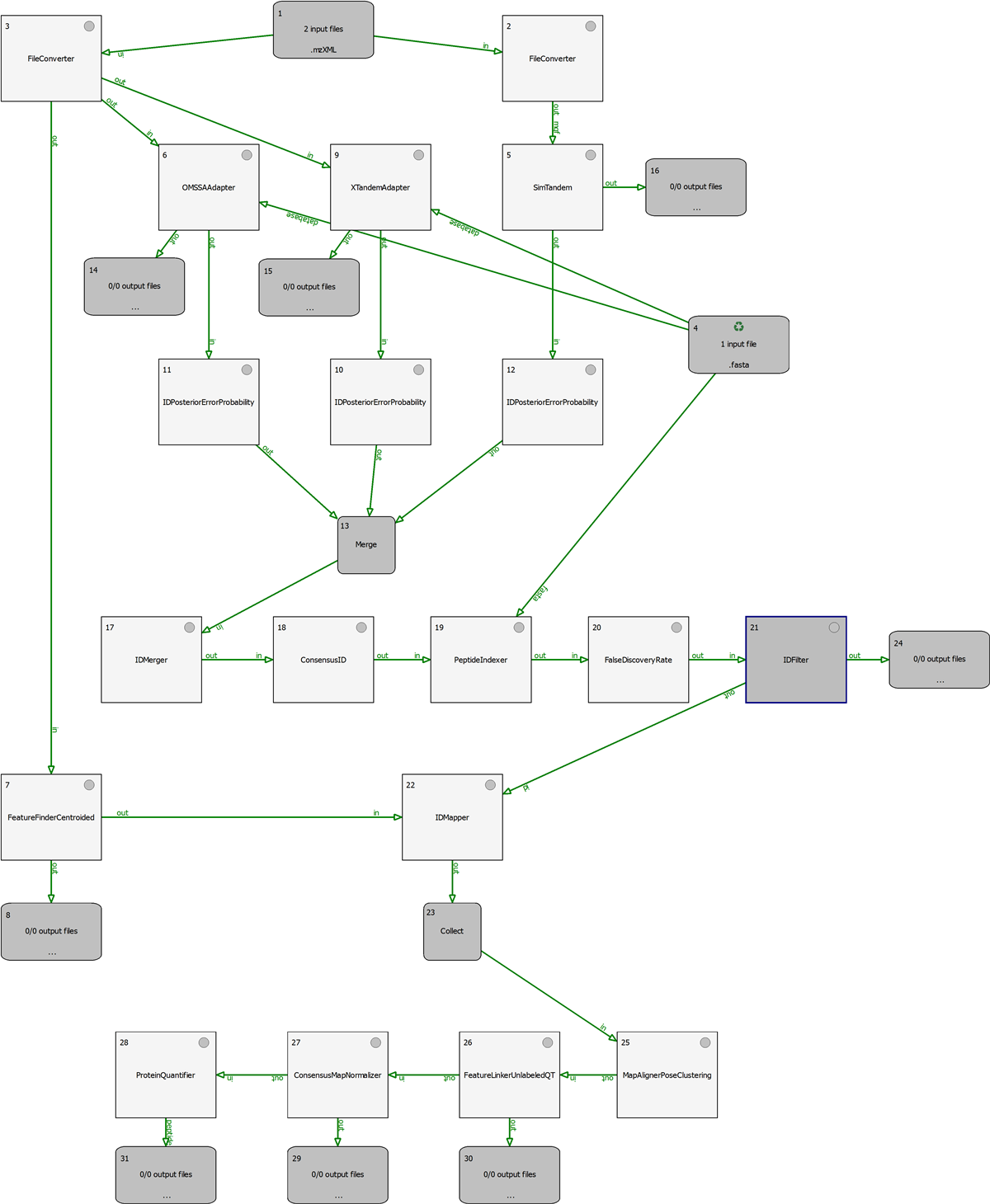
A label-free quantification workflow with ConsensusID.
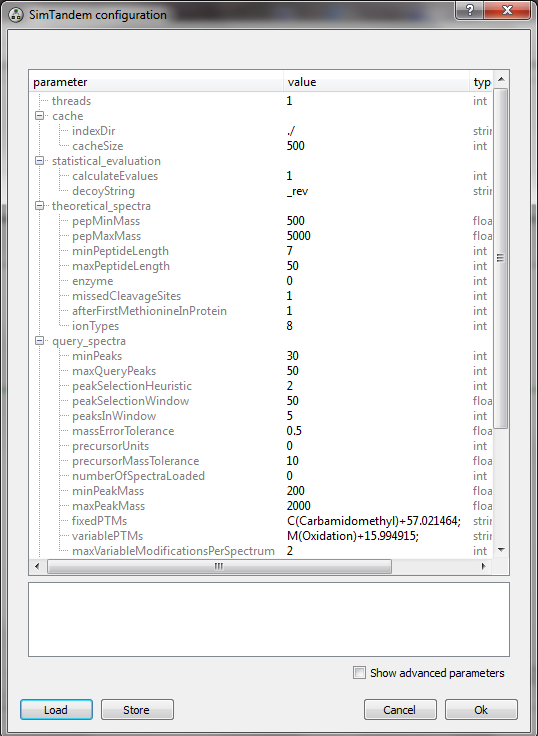
Configuration of SimTandem.
Contact information
E-mail:jiri.novak [at] biomed.cas.cz